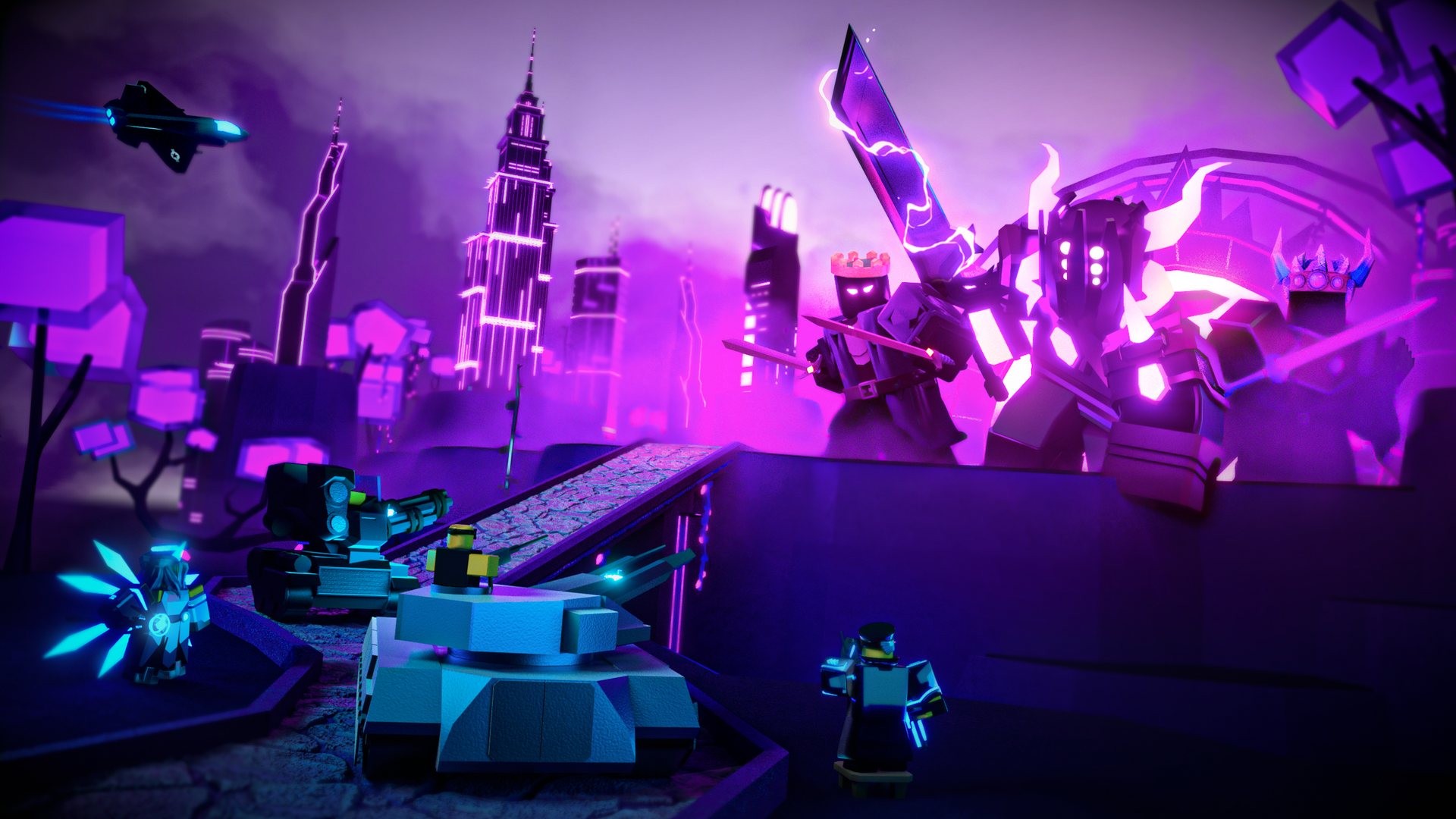
Tower Defense Simulator Not Loading? Quick Fixes & Solutions
Are you struggling with Tower Defense Simulator not loading? Discover effective troubleshooting steps to resolve connection issues and get back to gaming.
Published:
Table of Contents
Have you ever sat down to play, only to find yourself stuck at the loading screen? Dealing with Tower Defense Simulator not loading can be an incredibly frustrating experience, especially when you are ready to jump into a new event or complete your daily quests. Whether you are stuck in an infinite loading loop or unable to enter the lobby, this guide is designed to help you diagnose and resolve these connection issues quickly.
Understanding why your game won't launch is the first step toward getting back to the action. By addressing common technical bottlenecks—ranging from platform-specific cache issues to local hardware limitations—you can often bypass these hurdles without waiting for a developer patch.
Why Does Tower Defense Simulator Fail to Load?
When you encounter Tower Defense Simulator not loading errors, the issue typically stems from one of three areas: your client's interaction with the Roblox engine, network latency, or server-side synchronization. Because Tower Defense Simulator, developed by Paradoxum Games, receives frequent updates, your local temporary files may become outdated or corrupted.
Understanding the root cause allows you to apply the correct fix efficiently. Below is a breakdown of the most common factors that disrupt your connection to the game servers.
Common Factors Affecting Game Connectivity
Category
Typical Cause
Impact on Gameplay
Network
High Latency / Packet Loss
Stuck at "Loading Assets"
Client
Corrupted Cache Files
Game crashes during initialization
Platform
Outdated Roblox Version
Incompatibility with game updates
Hardware
Low RAM / Overloaded GPU
Infinite loop on map assets
Step-by-Step Troubleshooting for Loading Issues
If you are facing problems where the screen freezes, don't panic. Many players in the official Roblox community have successfully resolved this by clearing their cache and verifying their internet settings. Follow these steps to restore your connection.
1. Clear Your Roblox Cache
Over time, temporary files can conflict with new game data. Clearing these files forces the client to download fresh, compatible assets.
For Windows: Press Win + R, type %localappdata%, find the Roblox folder, and delete the Downloads and Cache subfolders.
For Mobile: Go to your device's App Settings, select Roblox, and choose "Clear Cache" or "Clear Data."
2. Check Your Graphics and Performance
According to community reports, some users with lower-end devices struggle to load large maps or complex game modes. If your device is struggling, it may time out while trying to render the game world.
Performance Tip
Before joining a high-intensity game mode, try lowering your graphics settings to manual level 1. Once you have successfully loaded into the lobby, you can slowly increase them.
3. Update Your Network Environment
If you are consistently seeing the tower defense simulator not loading error, your internet connection might be filtering traffic needed by the game. Try switching from Wi-Fi to a wired Ethernet connection, or restart your router to clear any local DNS bottlenecks.
Understanding In-Game Stalls vs. Initial Loading Errors
It is important to distinguish between a failure to enter the game and becoming stuck once inside a round. Some players report being able to reach the lobby, but then hitting a wall when attempting to join a specific mode, such as Hardcore or a limited-time event.
Troubleshooting Game-Specific Loading Errors
Scenario
Recommended Action
Stuck on Login
Log out of your Roblox account and sign back in.
Stuck at "Joining Server"
Check the status of the Roblox service via official channels.
Stuck in Lobby
Ensure you are not using restricted emotes or items that conflict with the server.
Stuck in Round
Rejoin the game; it may be a temporary server-side desync.
Why Hardware Limitations Matter
As Tower Defense Simulator adds more complex towers, units, and particle effects, the hardware requirements to run the game smoothly increase. Players with older devices often notice that the game takes significantly longer to load than it used to.
If your device is frequently struggling, consider the following hardware optimization tips:
Background Apps: Close resource-heavy applications like browser tabs or streaming software while playing.
Drivers: Ensure your GPU drivers are updated to the latest version.
Storage Space: Keep at least 10% of your disk space free to allow the Roblox cache enough room to breathe.
What to Do If Problems Persist
If you have tried the steps above and are still seeing tower defense simulator not loading issues, the problem may be beyond your control. Paradoxum Games frequently updates the game, and sometimes, new deployments can cause temporary connectivity issues for specific regions or device types.
Recommended Next Steps for Persistent Issues
Monitor Official Channels: Follow the developers on social media for announcements regarding maintenance.
Report the Issue: Use the official Roblox support portal or the game's official community forums to report your specific situation.
Wait for a Hotfix: If a large number of players are experiencing the same issue, the developers are likely already working on a fix.
[!SUMMARY]
Quick Fix Checklist
Restart: Close Roblox completely and reopen.
Cache: Delete the Roblox cache folder in your local settings.
Connection: Reset your modem or switch to a more stable network.
Drivers: Update your graphic card drivers for improved compatibility.
FAQ: Frequently Asked Questions
Q: Why is Tower Defense Simulator not loading after an update?
A: This usually happens because your cached version of the game assets is conflicting with the new update. Clearing your local Roblox cache will force the client to fetch the latest files, which typically solves the problem.
Q: Does my internet speed affect loading times?
A: Absolutely. While Tower Defense Simulator isn't the most bandwidth-heavy game, a stable connection is required to sync assets. If your latency is high, the game may timeout while loading.
Q: Can I fix the loading screen freeze on mobile?
A: Yes. Try closing all other background applications and clearing the game's cache in your phone's settings. If that fails, uninstalling and reinstalling the Roblox app can help remove any deep-seated corrupted files.
Q: Is there a way to avoid getting stuck in a loading loop?
A: Avoid spamming input buttons while the game is connecting. Allowing the game time to initialize its assets properly is the best way to ensure a smooth transition from the lobby to the game map.